If you imported GCPs when creating the project and the point cloud remains unoriented after processing, use the GCP editing function. There are two situations that lead to unoriented points; we explain each below. Right-click ‘Edit GCP’ to open the control point editing interface.
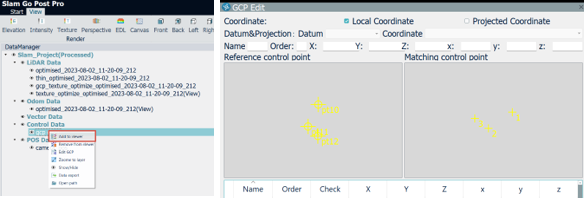
Editing GCP
In the first case, when there are more matching points than control points, click the control point being edited, change the matching point number on the top toolbar and associate the control point with the correct matching point; the extra matching point at the end can then be ignored and will not take part in any calculations.
In the other case, when there are fewer matching points than imported control points, the user must edit the control point file and remove the extra control points.
After the changes, the user can check the control points against their distribution and then re-orient the point cloud in the function panel.